
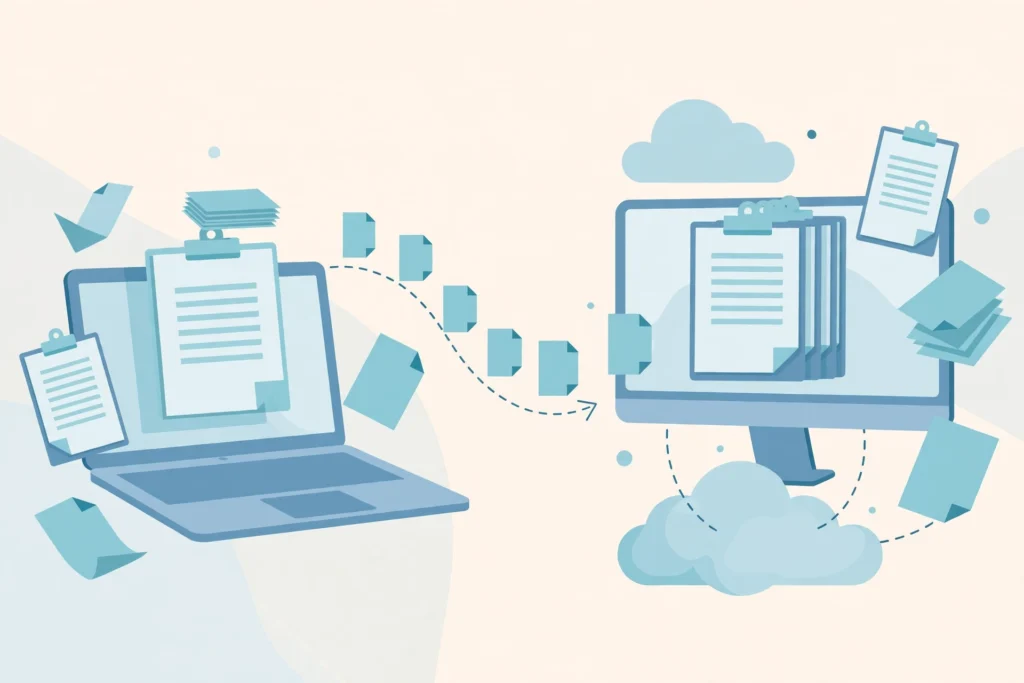
When RDP copy and paste not working stops you from moving text or a file between your own computer and a remote Windows session, the problem is usually in the clipboard connection, not in the file itself. The session may still be open and responsive, yet nothing arrives when you paste. Work through the checks in order, change one thing at a time, and test after each change, instead of repeating the same failed paste.
This guide explains what copy and paste needs in a remote session, how to tell whether the fault is with text, files, or formatting, and what to check on your own computer, in the session, and on the host. It is about fixing a broken clipboard, rather than a general guide to moving files.
What RDP Copy and Paste Not Working Actually Means
RDP copy and paste not working means the clipboard is not shared between the two computers, even though the remote desktop itself is running. Copying on one side should place the item on a shared clipboard, and pasting on the other side should read it back. When that link breaks, the paste step either does nothing, pastes an older item, or pastes only part of what you copied.
Test Text, Files, and Formatting Separately
Start by testing the three kinds of paste separately, because they can fail for different reasons. First, copy a short piece of plain text on your own computer and paste it inside the remote session. Then try the other direction, copying text inside the session and pasting it on your own computer. If plain text works in both directions, the basic clipboard link is alive.
Next, try a small file, and then try formatted text, such as text copied from a document with bold or coloured formatting. A file may fail while text succeeds, and formatted text may lose its formatting even when plain text works. Write down which tests show RDP copy and paste not working and which passed, because that pattern tells you whether to look at clipboard settings, at the clipboard process, or at the host settings in the next steps.
Check Clipboard Redirection Before You Connect
Clipboard redirection is the setting that allows the local clipboard to be used inside the remote session. In Remote Desktop Connection, select Show Options before you connect, go to the Local Resources tab, and make sure Clipboard is selected under local devices and resources. This setting must be in place before the session starts.
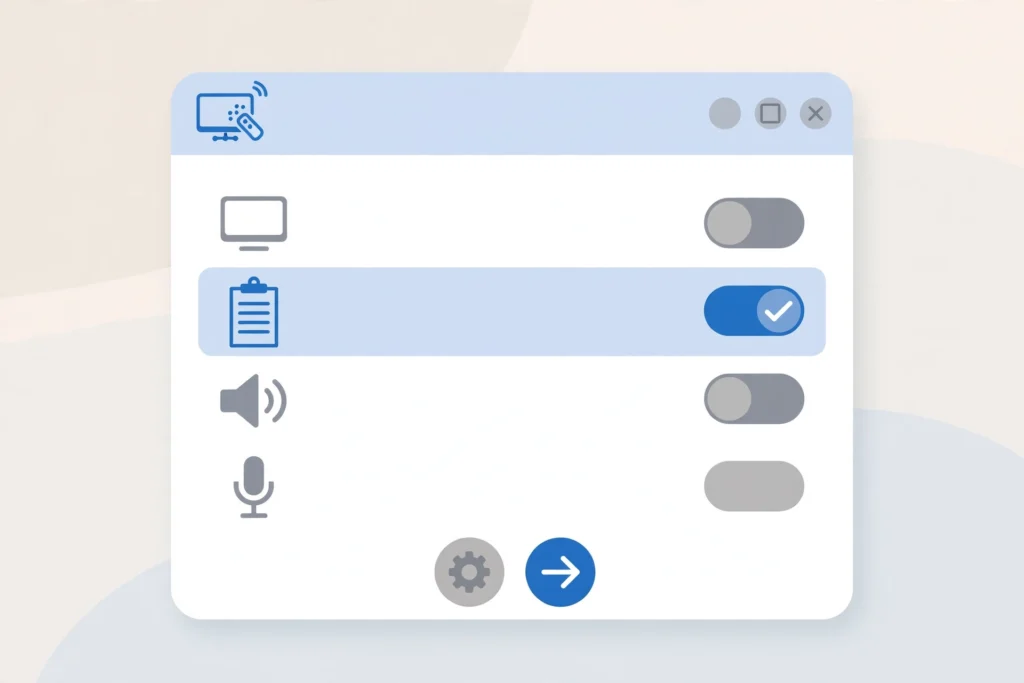
Settings chosen before connecting do not apply retroactively to a session that is already open. If you discover that Clipboard was not selected, you need to end the session and reconnect after selecting it. Simply changing the setting while RDP copy and paste not working is present in a running session will not fix the clipboard in that session, and repeating the paste will keep failing for the same reason.
Restart Rdpclip or Reconnect
If clipboard redirection was already selected and plain text still fails, the clipboard process on the remote computer may have stopped working. On the remote computer, open Task Manager, find rdpclip, end it, and start it again. Then test copy and paste with a short piece of plain text before trying a file again.
If restarting rdpclip does not fix RDP copy and paste not working, log off from the remote session and reconnect, making sure Clipboard is still selected under Local Resources before you connect. A fresh session gives the clipboard a clean start, and it is a better test than repeatedly pasting into a session where the clipboard has already stopped. Note whether the first paste after reconnecting works, because a clipboard that works at first and then stops again points to something interrupting it during the session.
Check Host Settings and Use Drive Redirection for Large Files
If RDP copy and paste not working continues after the checks above, the host may not allow clipboard redirection, or may allow it only in one direction. Do not change Group Policy or registry settings yourself to work around this. Instead, ask the host administrator whether clipboard redirection is allowed for your account, and share the results of your text, file, and formatting tests so they can check the right setting.
For very large files, do not keep repeating clipboard attempts. Use drive redirection instead: in Remote Desktop Connection, select Show Options, go to the Local Resources tab, select More, and select Drives, then browse the redirected drive inside the session under This PC and copy the file from there. When RDP copy and paste not working blocks clipboard transfers, drive redirection is the steadier route for a large transfer, while the clipboard is best kept for text and smaller items.
Frequently Asked Questions
Why does paste work for text but not for files?
Text and files use the clipboard in different ways, so one can work while the other fails. If text works in both directions, the basic clipboard link is present, and the file problem is more likely to be a redirection setting, a host restriction, or the size and type of the file. Test with a single small file, check that Clipboard and Drives are selected before you connect, and ask the host administrator if RDP copy and paste not working affects files but not text.
Why did copy and paste stop working in the middle of a session?
RDP copy and paste not working can start when a clipboard process stops during a session, even while the remote desktop itself stays open. Restarting rdpclip on the remote computer, or logging off and reconnecting with Clipboard selected, often restores it. If it stops again soon after reconnecting, note what you were doing just before it stopped, because that detail helps the host administrator find the cause.
Should I change a policy or registry setting to fix the clipboard?
No. Changing Group Policy or registry settings yourself can affect other users and other settings on the host, and it is not a safe first step for a clipboard problem. Work through the client settings, the rdpclip restart, and a fresh reconnection first, and ask the host administrator to check host settings if RDP copy and paste not working continues.
Fix RDP Copy and Paste Not Working Step by Step
To fix RDP copy and paste not working, follow the order in this guide: test text, files, and formatting separately, check Clipboard under Local Resources before you connect, restart rdpclip or reconnect, and then check what the host allows. Keep credentials private throughout, and do not share your sign-in details in a message about the clipboard problem.
RDP copy and paste not working is frustrating, but it is usually narrowed down quickly once the tests are separated. A clear note of what passed, what failed, and what you changed makes the next step obvious, whether that step is a reconnection on your side or a host setting checked by an administrator. Ultra Fast VPS offers Starter 2GB, Performance 4GB, and Power 8GB plans, and the guide How to Choose the Right Windows VPS Plan can help you compare the options before you order.
Related: 2 vCPU vs 4 vCPU: Which One Do You Actually Need?
Need help choosing a Windows VPS? Contact Ultra Fast VPS on WhatsApp to discuss the available plans and locations: https://wa.me/923044102652 (+92 304 4102652).
One Response