
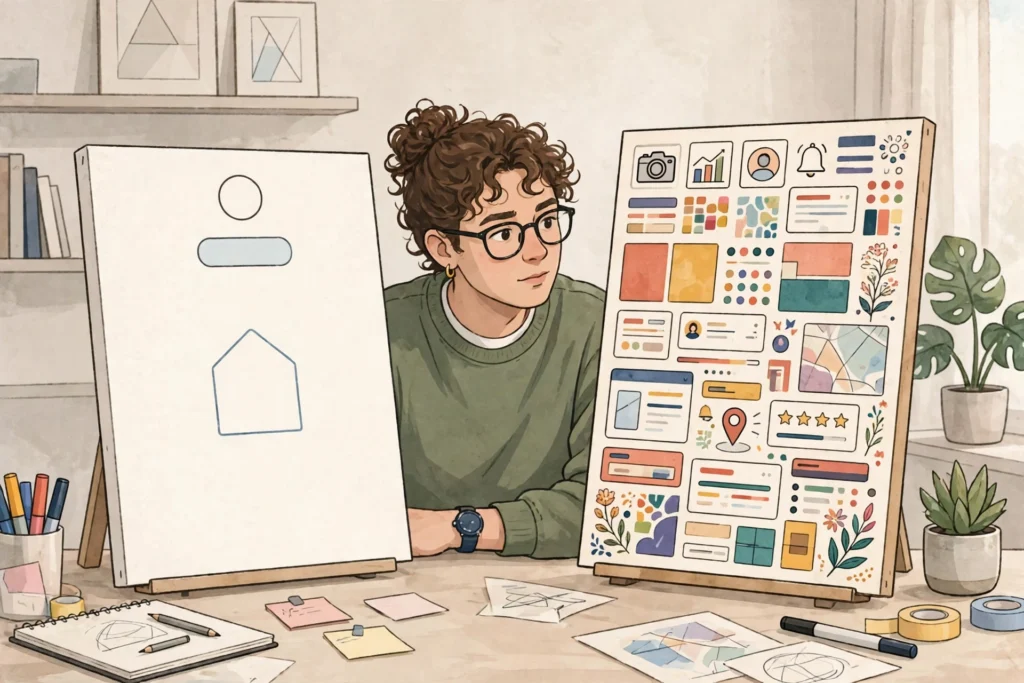
Canva Free vs Pro is a simple choice once you separate everyday design needs from regular branded work. Free gives you a working design editor with free templates and assets, while Pro adds premium templates, larger storage, more Brand Kits, and tools such as Background Remover and Magic Resize. If you design only now and then, Free is usually enough. If you make branded designs often, Pro saves time and removes several limits. This guide compares the two plans in general terms, explains how to decide, and lists the Canva Pro prices sold through UltraFastVPS.
What Canva Free vs Pro Means in Practice
The main point of Canva Free vs Pro is not that Free is incomplete, but that the two plans are built for different levels of use. Free is a permanent plan, not a trial, so you can keep using it without a deadline. It is designed for people who want to create social media posts, presentations, posters, invitations, and other everyday designs without paying for a subscription. Pro is designed for people who design regularly, work with a brand, need premium content, or produce the same design in many sizes.
Both plans use the same drag-and-drop editor. The difference is mainly in what you can use, how much you can store, how many brand elements you can save, and which advanced tools are available. When weighing Canva Free vs Pro, ask which plan matches how often you design and how much branded work you do.
What You Get with Canva Free
Canva Free includes the drag-and-drop editor, free templates, and a selection of free photos, graphics, and other assets. You can create designs for social media, presentations, documents, posters, and more, and you can download and share your work. For occasional use, this is often all you need.
Free also includes limited storage, one Brand Kit, and a limited AI allowance. A Brand Kit is where you save brand colours, fonts, and logos so you can reuse them across designs. With only one Brand Kit on Free, you can keep one brand organised, but it is less convenient if you manage several brands or clients. Premium templates and assets are shown in the editor, but they are watermarked or locked unless you pay for them or move to Pro. That is an important limit to understand before you start a design: if your design depends on premium media, Free alone may not finish it cleanly.

What Changes with Canva Pro
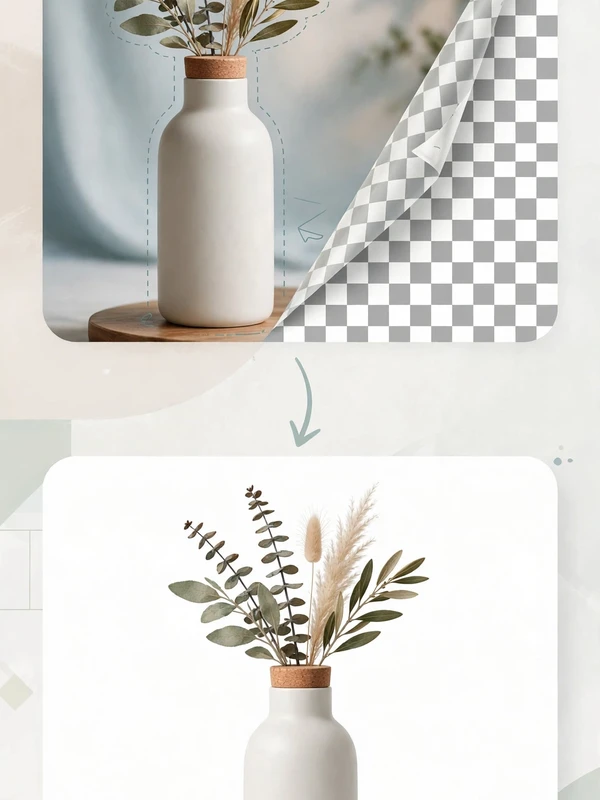
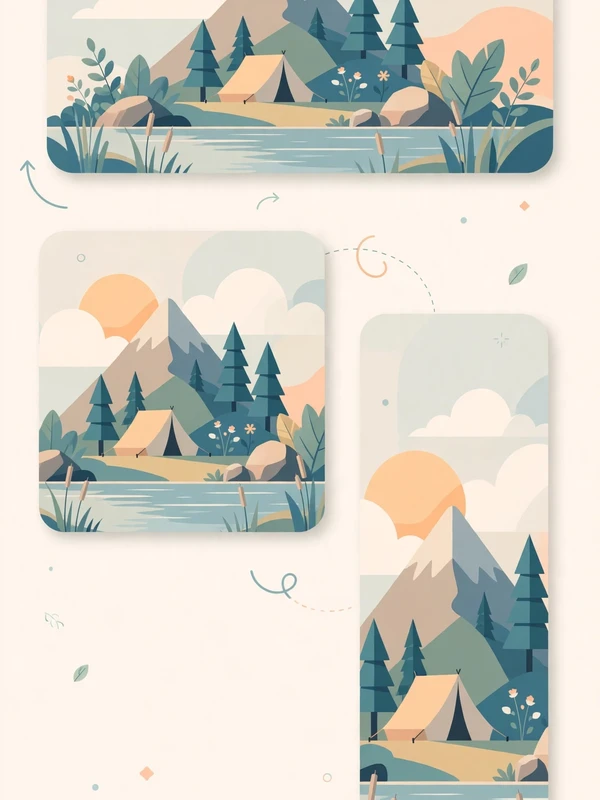
Pro builds on the same editor but removes many of the limits above. You get premium templates and premium assets, larger storage, and more Brand Kits, which makes it easier to keep several brands organised. You also get Background Remover, which can remove the background from an image, and Magic Resize, which can adapt a design to different sizes without rebuilding it from scratch. Pro also includes scheduling and premium workflow tools that help if you publish designs regularly.
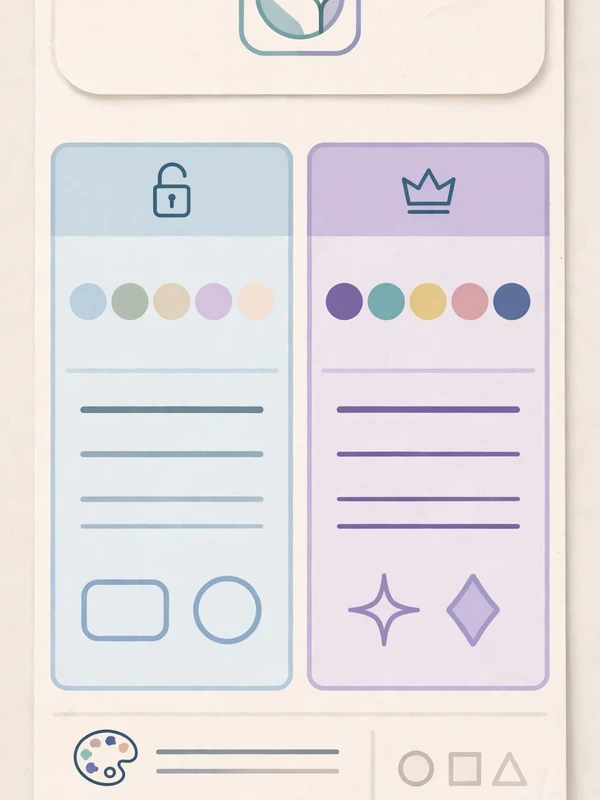
In Canva Free vs Pro terms, these tools matter most when design is a repeated task rather than a one-off job. Background Remover is useful for product images and social media graphics. Magic Resize is useful when one design must appear as a post, a story, a banner, and a presentation slide. More Brand Kits help when you switch between brands, and larger storage helps when you keep many designs and assets.
How to Decide Without Overpaying
To decide without overpaying, start with your actual design habits, not with the longest feature list. Stay with Free if you design occasionally, use mainly free templates and assets, and do not need background removal, many sizes, or several Brand Kits. Free is a sensible starting point, and you can test whether Canva fits your workflow before spending anything.
Consider Pro if you design every week, produce branded work again and again, use premium photos or graphics often, need background removal, or need the same design in many sizes. A practical Canva Free vs Pro test is to try Free first with a real project, note where you hit a limit, and upgrade only when a limit keeps slowing you down. That Canva Free vs Pro decision should follow your real workload, not a feature list.
Official prices and limits vary by country and date, so check the current Canva pricing page before paying for an official Canva subscription. Do not rely on an old price or limit you saw elsewhere, because the official offer can change. The prices in the next section are different: they are the Canva Pro prices sold through UltraFastVPS, not Canva’s official prices.
Canva Pro Prices from UltraFastVPS
Ultra Fast VPS sells Canva Pro at the following site prices, and you should confirm them on WhatsApp before ordering: Canva Pro 1 Month 200 Rs, 4 Months 350 Rs, 8 Months 500 Rs, and Admin Panel 2000 Rs. These are the site’s listed prices, not Canva’s official subscription prices.
For Canva Free vs Pro buyers, confirm the plan length, what is included, and how delivery and support work for that offer, because those details are part of the seller’s offer rather than Canva’s official plan description. The guide How to Choose the Right Windows VPS Plan explains how to compare plans in general, although it is written for VPS plans rather than design tools. Ultra Fast VPS also offers Starter 2GB, Performance 4GB, and Power 8GB plans for Windows VPS hosting, separate from this Canva Pro offer.
Frequently Asked Questions
Is Canva Free a trial?
No. Canva Free is a permanent plan, not a trial with an expiry date. This is a key Canva Free vs Pro point: you can keep using the free editor, free templates, and free assets without paying, although premium content remains watermarked or locked and storage, Brand Kits, and AI allowance remain limited.
Is Canva Free vs Pro worth it for occasional design?
For occasional design, Free is usually enough, especially if you work with free templates and assets. Pro becomes worth considering when you design regularly, need premium media, background removal, many sizes, or several Brand Kits, because those are the points where Free limits start to slow you down.
Can I switch plans later?
Yes, in general terms you can start with Free and move to Pro later if your work grows. A Canva Free vs Pro switch makes sense when the limits above start slowing you down. Always check the current Canva pricing page for the official terms that apply at the time, and confirm any UltraFastVPS offer on WhatsApp before ordering.
Canva Free vs Pro: Start Simple, Upgrade Only When Needed
Canva Free vs Pro comes down to frequency and branding. In Canva Free vs Pro, Free is a strong starting point for occasional designs, while Pro fits regular branded work, premium media, background removal, and many sizes. Start with Free, watch for the limits that actually affect your work, and upgrade only when those limits keep costing you time.
Need help choosing a Windows VPS? Contact Ultra Fast VPS on WhatsApp to discuss the available plans and locations: https://wa.me/923044102652 (+92 304 4102652).